Para Carer Front Page Dashboard

OVERVIEW
Your front page dashboard serves to not only provide a broad summary of your key forms but also to provide quick access to existing data.
The filters on the dashboard allow you to quickly narrow down reports to specific athletes or adjust date ranges at a click of a button. Admittedly it does not provide a deep analysis but rather provides concise summaries of athlete support requirements and service delivery history.
When loading the dashboard you will notice that it is split up into several sections, with each section typically representing a form or workflow. Many of these sections are collapsed by default; only the Action Items and Shared Comms are open upon loading. This is simply to keep your frontpage neat and tidy. Expand the sections that you are interested in to interrogate further.
Typically dashboards will display flags or summarised results encouraging you to investigate further where necessary. Simply click on the cells that you are interested in and you will typically receive a popup with further information. If this further information is not enough, you have the option to "Go to record" to view the full record in its entirety.
ACTION ITEMS
The Action Items section of the dashboard is front and centre to alert you to pressing issues. In this case, upcoming reviews (as indicated from Consults) and athletes who have not gone through an Evaluation process in the specified timeframes are displayed here.
The first section displaying athletes' most recent Evaluation splits them up into 3 buckets and displays the date of their most recent Evaluation. Note that athletes who have had an Evaluation within the last 9 months will not be shown here; this simply serves to highlight athletes who should have an update in the short future. Remember that when filling out subsequent entries in the Para Carer Evaluation form that the form will pre-populate with previous answers meaning that you will only need to enter new information so it should be a relatively quick process.
The follow ups section is driven from the Consult form and will display summary information to help prepare for athletes identified as requiring follow ups. By default, follow up schedule within the next month will be displayed but if you would like to plan further ahead, use the "Before This Date" date picker to select a date further in the future.
EVALUATION SUMMARY
The first of the major Para Carer specific sections focuses on the Para Carer Evaluation form. There are a few summary tables in this section that are relatively self-explanatory summaries. The first of which is a basic flagging table that summarises the whole squad loaded and alerts the carer as to which areas of support each athlete requires assistance with. Those identified as requiring support are highlighted red and those not requiring support are highlighted green:
As is the case in most dashboard widgets, clicking on a cell (particularly those highlight red in this case) will present you with a pop up providing you with greater detail. If further detail still is required you are able to click on the "Go to record" button in the bottom right of the popup and you will be taken to the record to review in full.
TRAVEL PLANNING
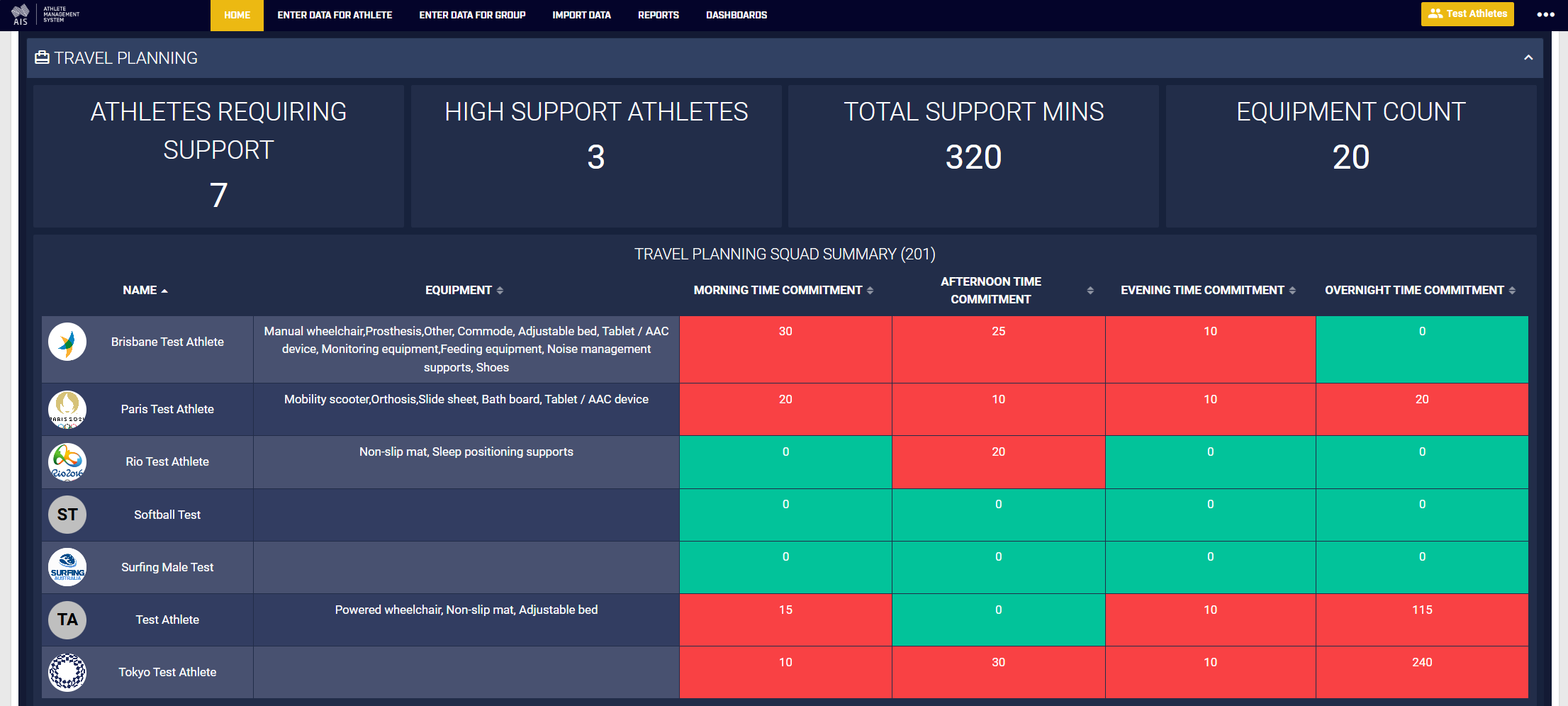
The "Travel Planning" section also comes from the Para Carer Evaluation form. Again, there are a few elements here that summarise assistance and planning requirements to help you better the support needs prior of your squad prior to travel. This section clearly outlines pieces of equipment for each athlete, travel preparation requirements including special planning, room preparation and arrival needs as well as support needs and extra time requirements to help plan for staff workloads. As always, further details can be gained by clicking on a cell and investigating the information contained within the popup.
TRAVEL REVIEW HISTORY
There are two sections in the dashboard that summarise Para Carer Travel Review records. The first section is a table showing historical records for all athletes in the loaded group. A simple table arranged by most recent records, that displays an abbreviated summary of the full report taken straight from the Para Carer Travel Review form (Remember that the constructed report is used for sharing; the full report is used in Para Carer reporting).
If you wish to see the full report, simply click on the table row and within the popup, you will see the full travel review report.
Additionally, if you wish to jump between full reports for different athletes, expand the "Individual Travel Review" section and rotate through athletes contained within the dropdown in this section.
SHARED COMMS
The "Shared Comms" section of the dashboard is a standard section that all disciplines have and looks and acts largely the same. The filtering here allows you to narrow down to specific athletes, shared notes originating from specific disciplines, notes that have been linked to specific forms (not just Para Carer related forms) and of course, adjust the time frame. To provide an example of how this quick, simple filtering could be useful, consider the following scenario. I have an athlete for whom I would like to get an idea of their injury history but of course, as a Para Carer, I do not have direct access to the injury form on AMS. I can, however, filter the dashboard to the athlete in question (athlete dropdown at the top of the dashboard) and select "Doctors and Physios" from the discipline dropdown (extend the date range out as required). If you would like to be more specific, you could select the "Injury Diagnosis" form in order to narrow down to just shared notes that have been linked to Injury Diagnosis records.